ONE経済圏の会員サイト内でサポーター会員のログインでWeb会議に参加できる機能を導入いたしました。今現在試験的に導入していますが、使用には問題はないと思います。問題が生じた場合は、お手数ですが、 エラーが生じている画面の写真を添付して info@one-japan.net までご報告をお願い致します。
The following is a guide to the participation procedure.
1. Click on the venue link.
The link will be provided to you via LINE group or email. We will also add a button to the member's My Page to move to the venue.
2. If you are not logged in, the following screen will be displayed, so please log in.
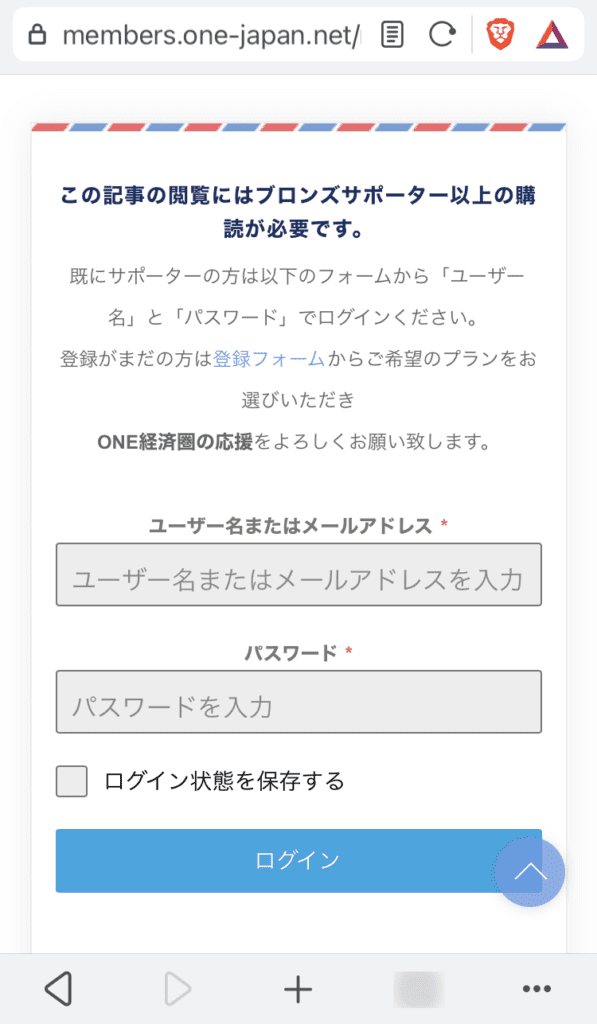
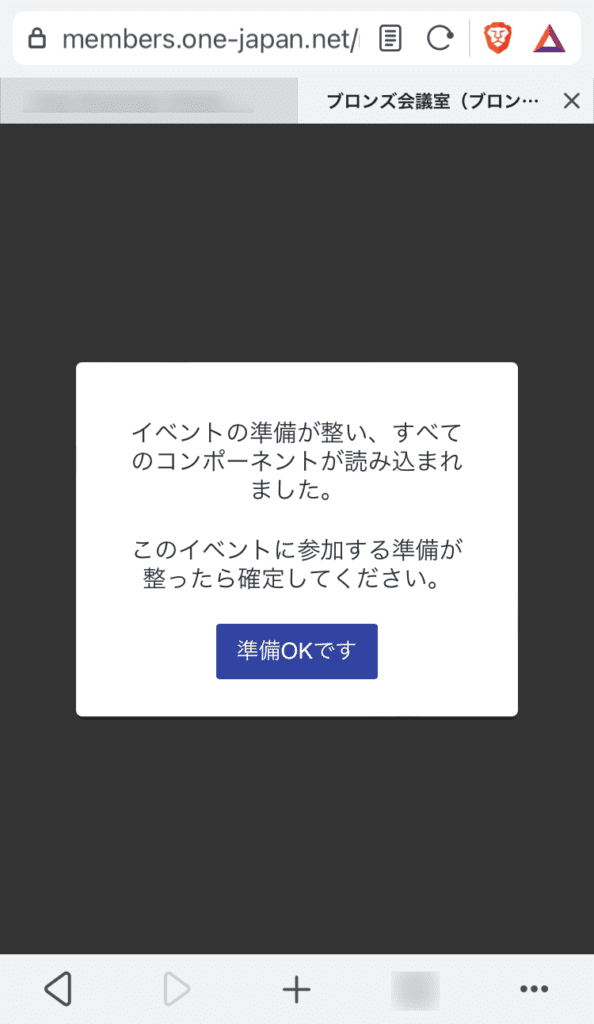
When the login is complete, the following screen will be displayed.
3. Click I'm ready.
4. If the web conference has not yet started, the following screen will be displayed.
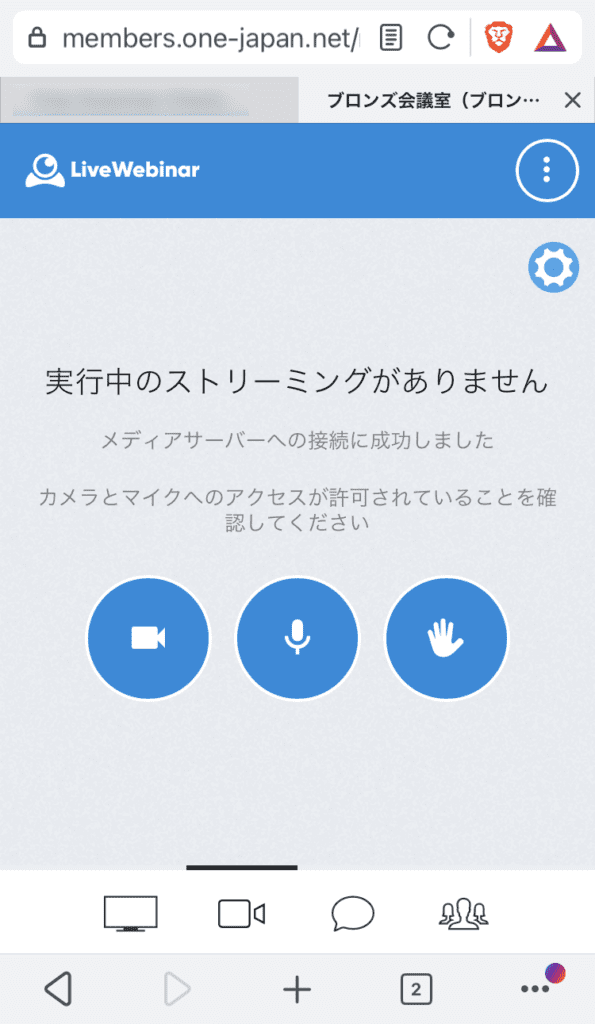
5. While waiting for the start of the web conference, configure the microphone and camera settings.
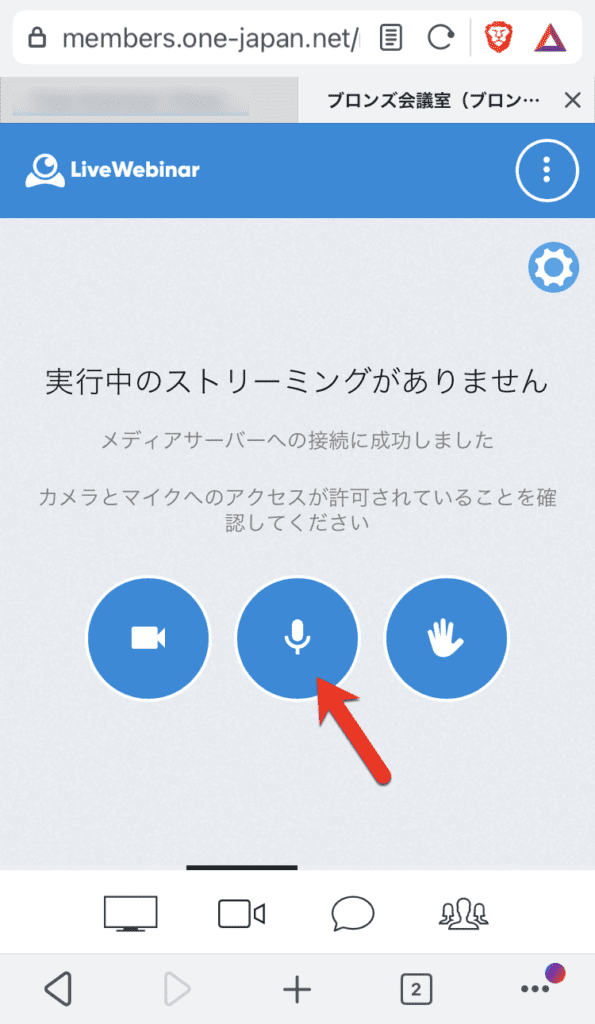
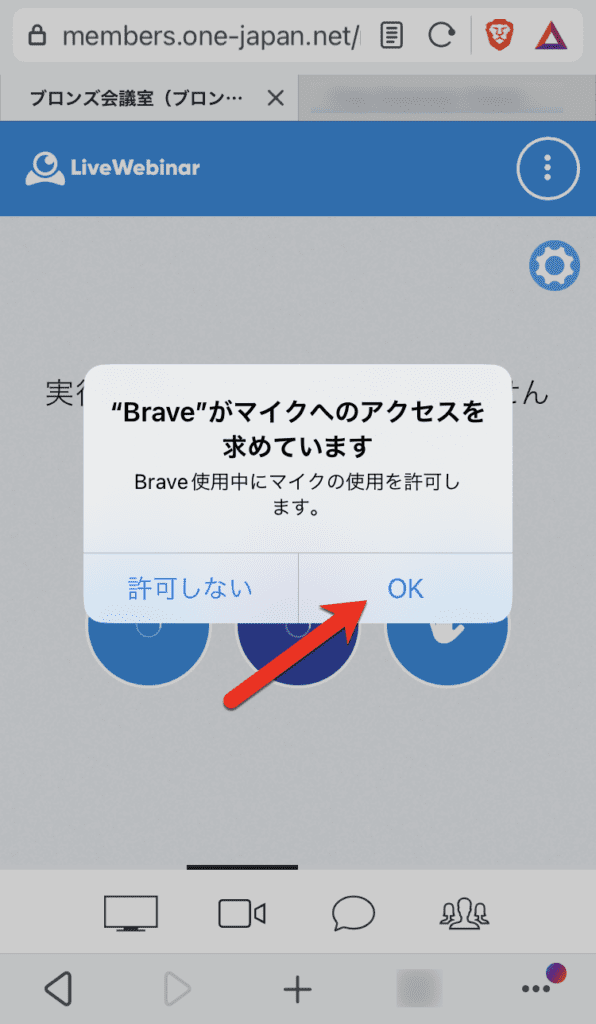
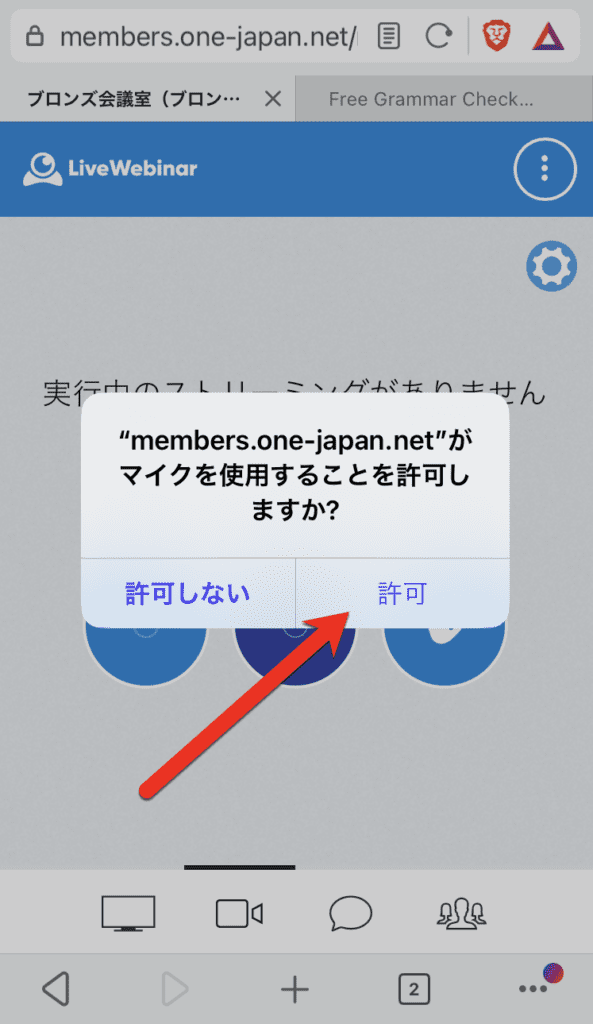
If you click on the microphone icon, you may need to allow microphone access twice, browser and homepage.
Both OK or permission Please note that you will not be able to participate with the microphone if you do not click .
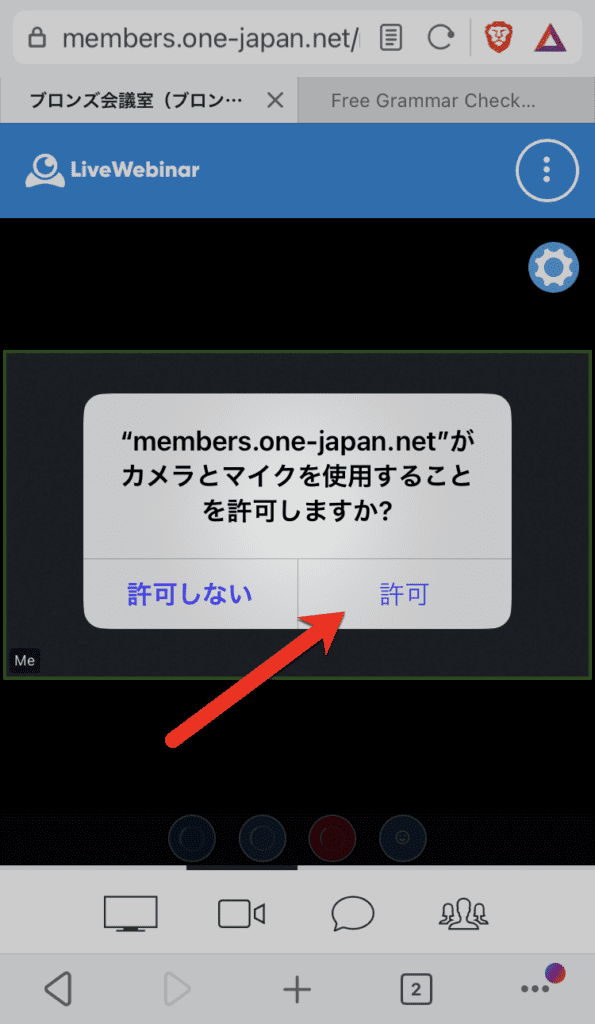
As with the camera, you may need to allow the camera to access twice, once in the browser and once on the homepage.
Both OK or permission Please note that if you do not click on the camera, you will not be able to participate with the camera.
![LiveWebinar 画面にカメラへのアクセスを要求するポップアップ メッセージが表示され、許可または拒否のオプションが表示されます。赤い矢印が [OK] ボタンを指しており、Web 会議の参加方法を案内します。](https://members.one-japan.net/wp-content/uploads/2023/06/IMG_4907-594x1024.png)
6. Use during web conferences
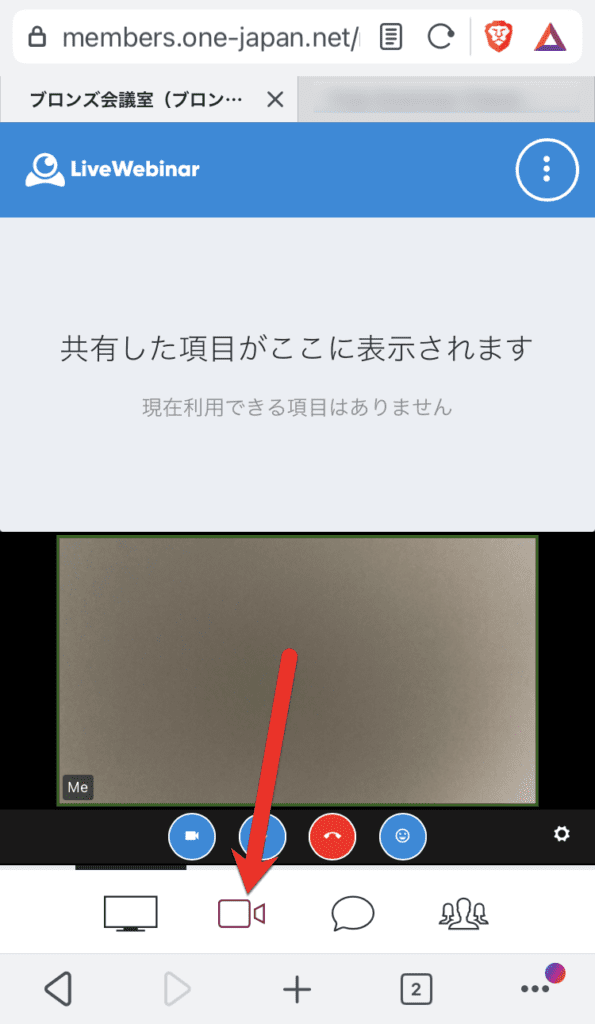
FOCUS ON THE WEBCAM
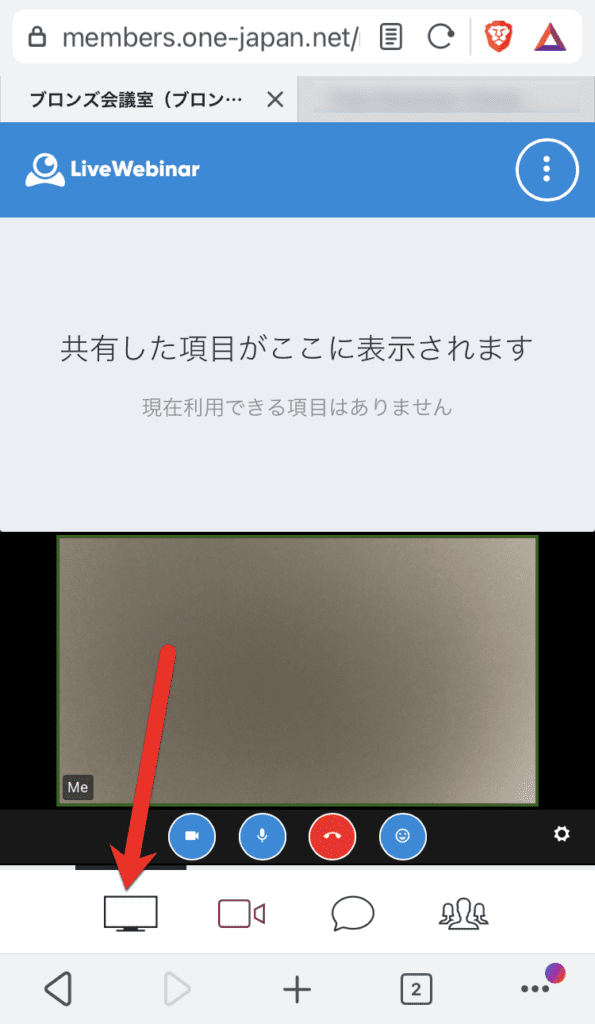
Check shared materials and instructor screens
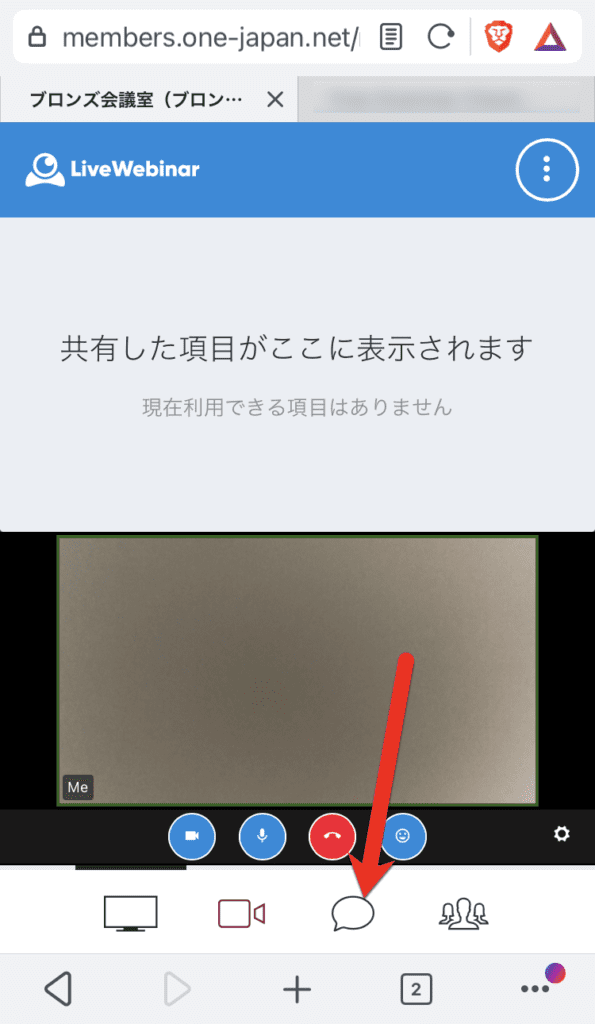
Send a chat message or read a chat
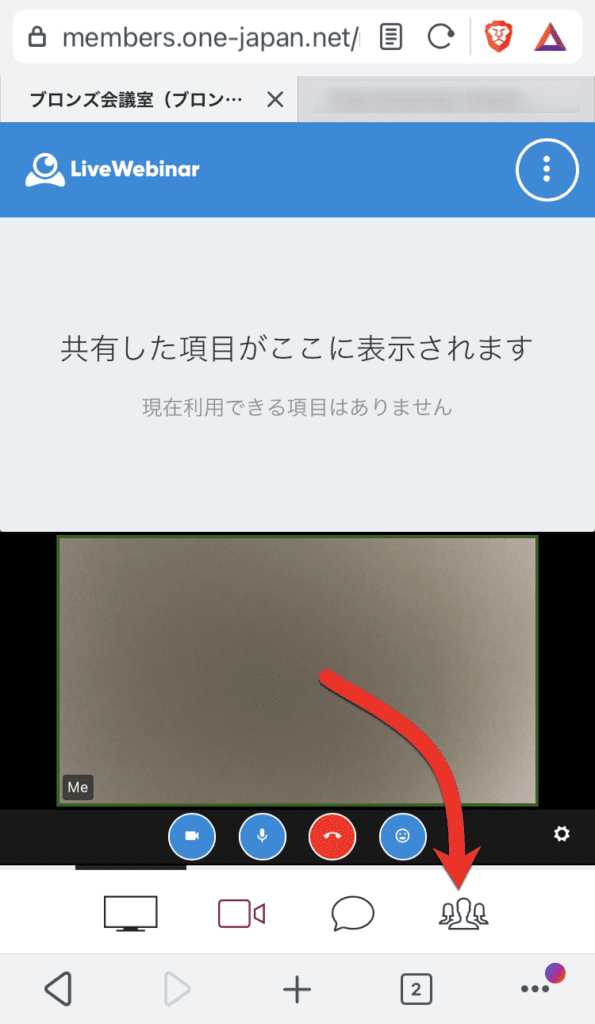
See the list of participants
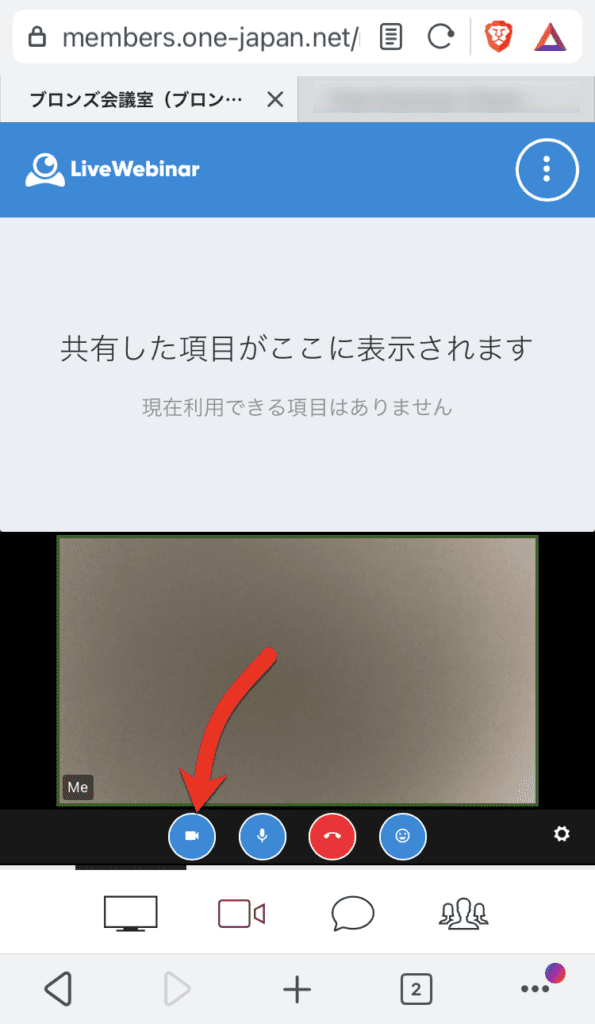
Start/stop your camera
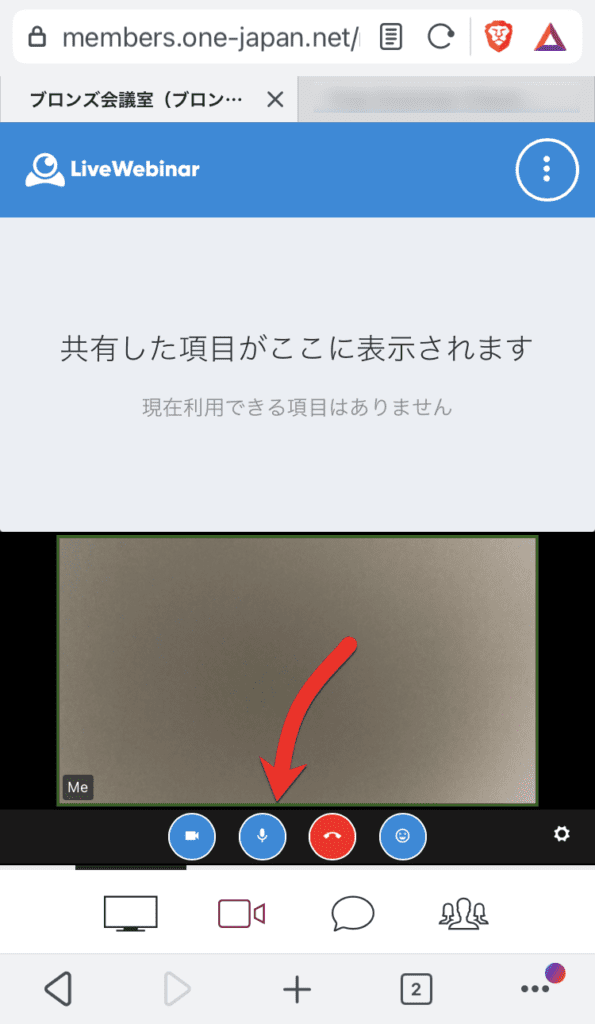
Start/stop your own microphone
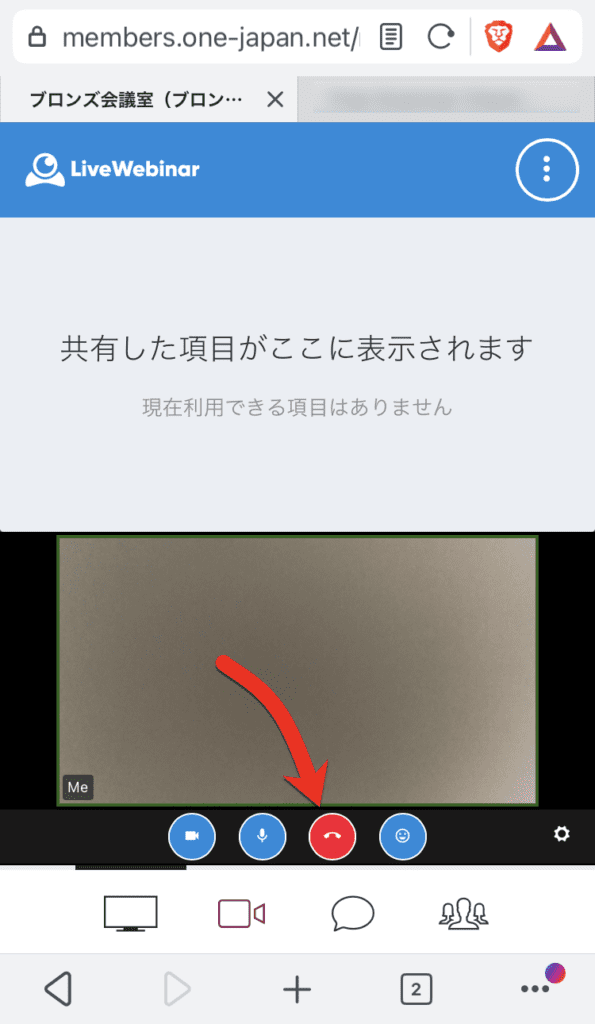
Leaving a web conference
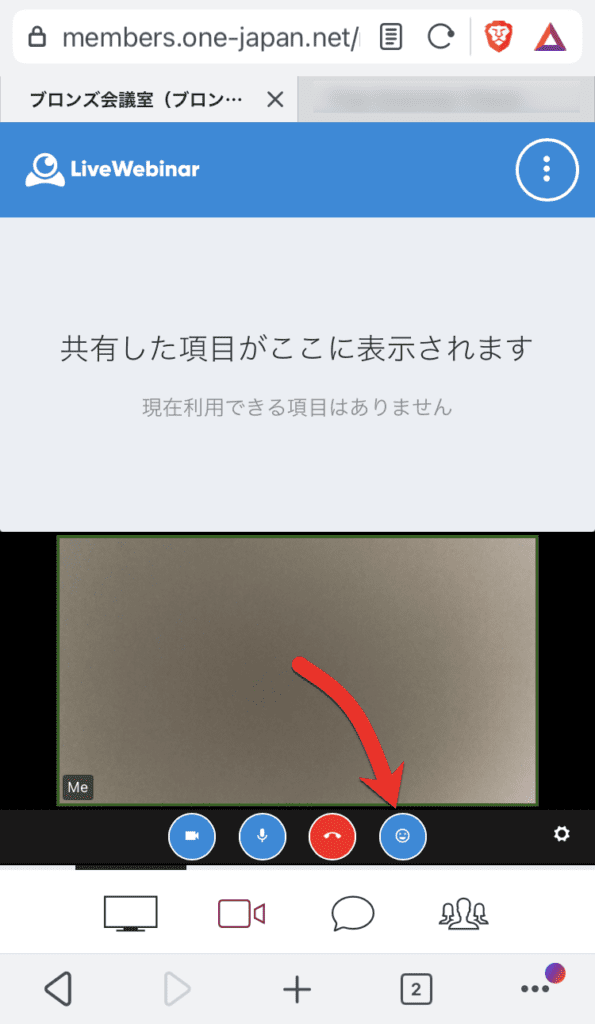
Express your emotions with emojis
This is how to participate in the web conference. If you have any questions, please feel free to contact us.

































 Copyright © 2020 – 2026 All Rights Reserved


 Copyright © 2026 All Rights Reserved
Need help? Please contact our help desk.