A woman is pushing a shopping cart filled with boxes and bags. The highlight of DealShaker is the text in Japanese and English, where you can watch an informative video detailing how to exchange ONE for OESP.

A must-see for those who want to shop at DealShaker! How to swap ONE for OESP

* If you are a Bronze member or above, you can read the following articles without advertisements.
A woman is pushing a shopping cart filled with boxes and bags. The highlight of DealShaker is the text in Japanese and English, where you can watch an informative video detailing how to exchange ONE for OESP.

OneEcosystem - How to exchange ONE for OESP

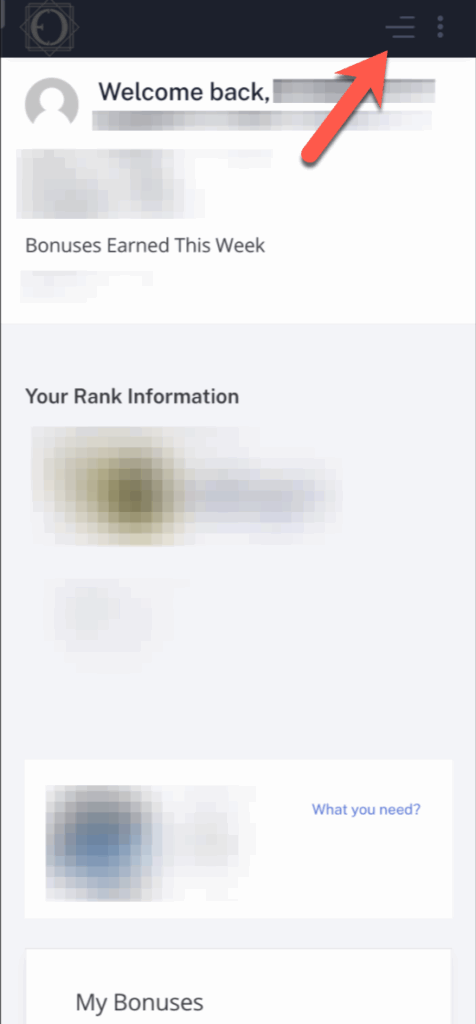
Step 1: Click on the hamburger menu

A screenshot of the DealShaker mobile app dashboard showing a welcome message, earned bonuses, rank information, and a red arrow pointing to the hamburger menu icon in the top right. Text and images are blurred for privacy.

Step 2: Verify your account name

First, select the account you want to add OESP to. Follow the steps below to make a purchase at DealShaker using the account that obtained the OESP. Please note that you will not be able to shop if you have a different account.
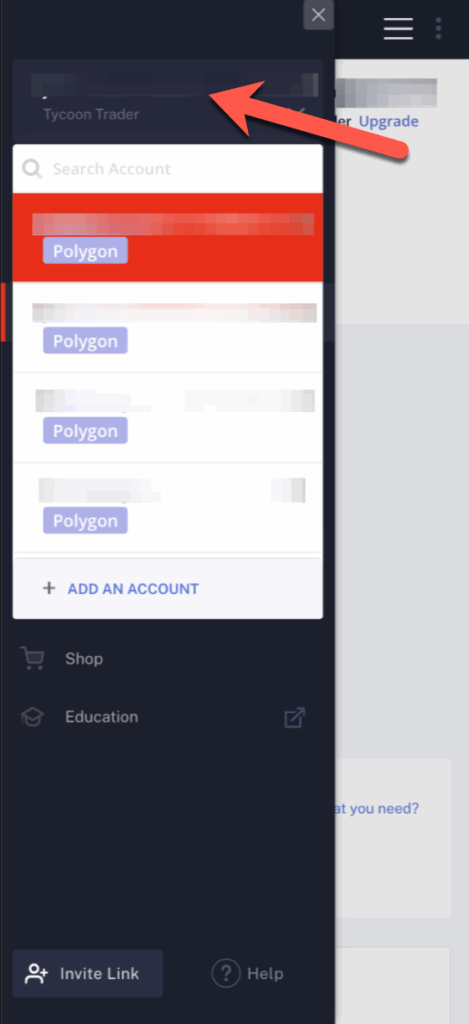
A sidebar menu displays multiple "Polygon" accounts, including "Tycoon Trader" at the top. The menu has options for "Shop," "Education," and "DealShaker," with an "Invite Link" button at the bottom. The top account is highlighted with an arrow.

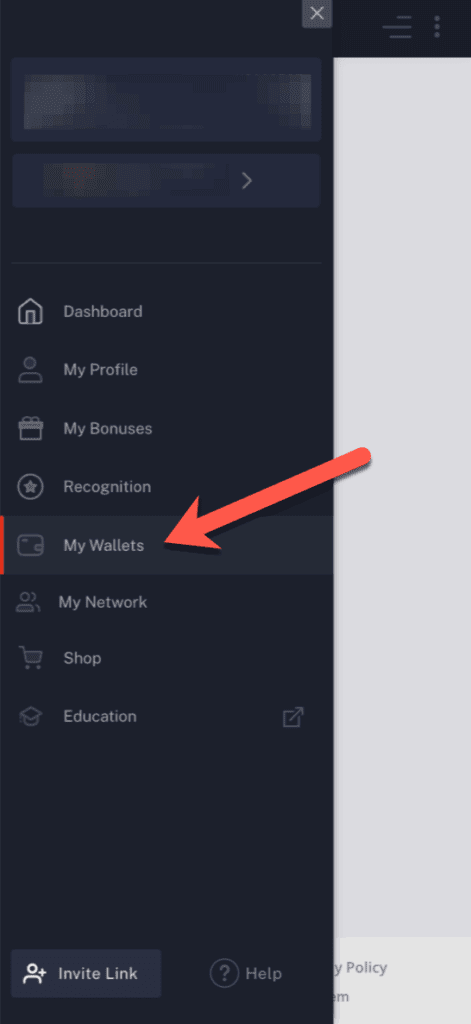
Step 3: Click on "My Wallets".

Sections include Dashboard, My Profile, OESP, DealShaker, My Bonuses, Recognition, My Network, Shop, and Education.

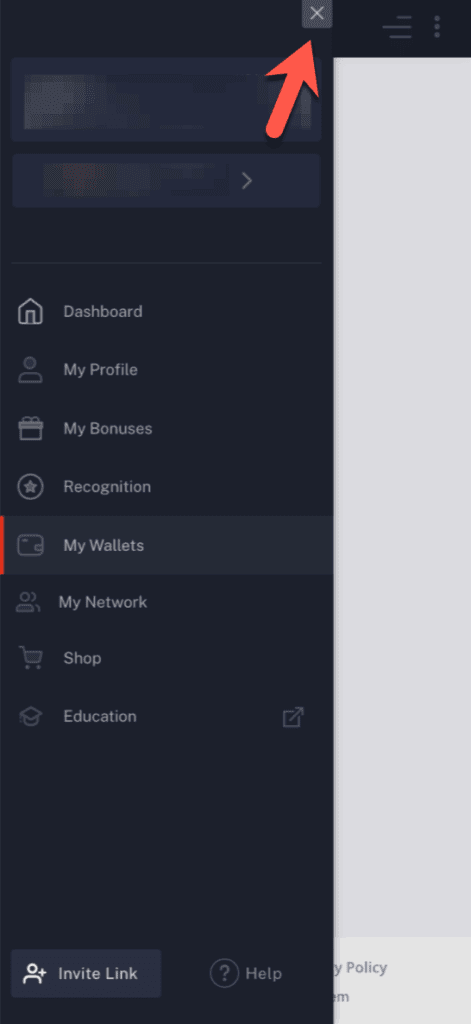
Step 4: Click on the X icon (X) to close the menu.

A red arrow points to an "X" icon in the top right of a dark DealShaker sidebar menu, which has options like Dashboard, My Profile, My Wallet, and Invite Link.

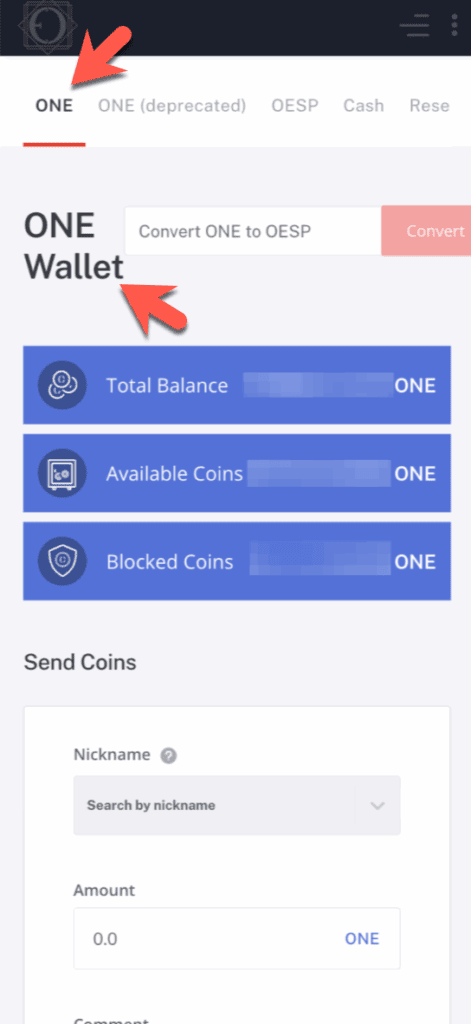
Step 5: Make sure your "ONE" wallet is open.

A screenshot of a digital wallet interface with the "ONE" tab selected. Options below show total balance, available coins, and blocked coins, with a section to send ONE coins by nickname and amount.

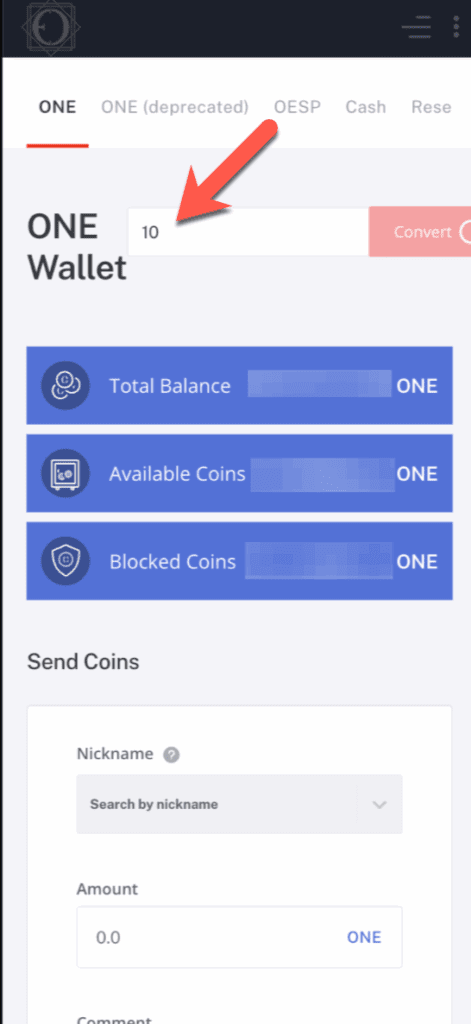
Step 6: Fill out the form at the top with the number of ONEs you want to exchange for OESP.

A screenshot of a cryptocurrency wallet interface showing fields for total balance, available coins, blocked coins, and sending ONE coins. A red arrow points to a box with the number 10 at the top.

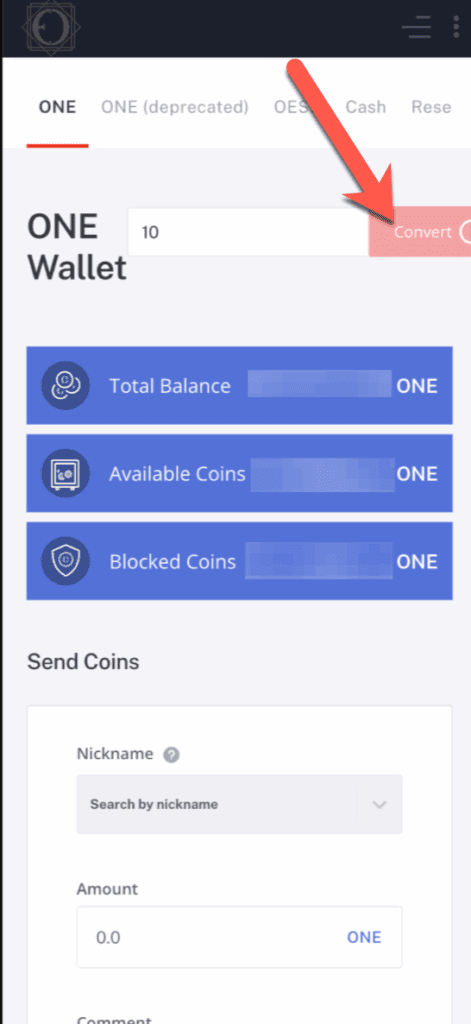
Step 7: Once you have entered the number of ONEs you want to exchange, click on the red Convert button.

A screenshot of a cryptocurrency wallet interface showing ONE coin balance and a coin sending form. A large red arrow points to a disabled "Convert" button next to the amount field, highlighting ONE's functionality for platforms like DealShaker.

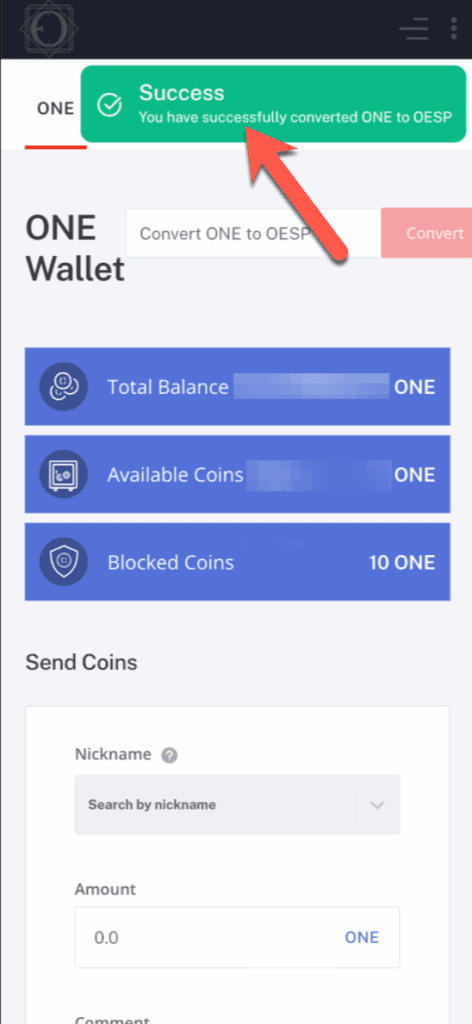
Step 8: If there are no problems, you will see a success notification.

A success message appears on the screen: "Successfully converted ONE to OESP." An arrow points to the message. Below are wallet details for total, available, and blocked ONE coins, and a form to send coins on DealShaker.

Step 9: At the bottom of the screen, you can see that your application is pending.

You can see that ONE has been deducted for the amount you applied for replacement.
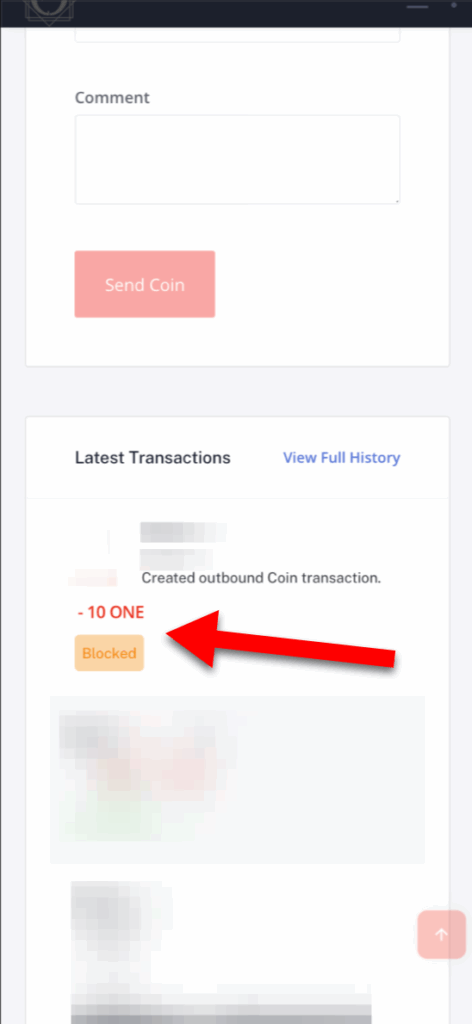
A screenshot of the transaction page shows a recent outbound ONE transaction on DealShaker, with "-10 ONE" displayed in red and labeled "Blocked". A large red arrow highlights this entry.

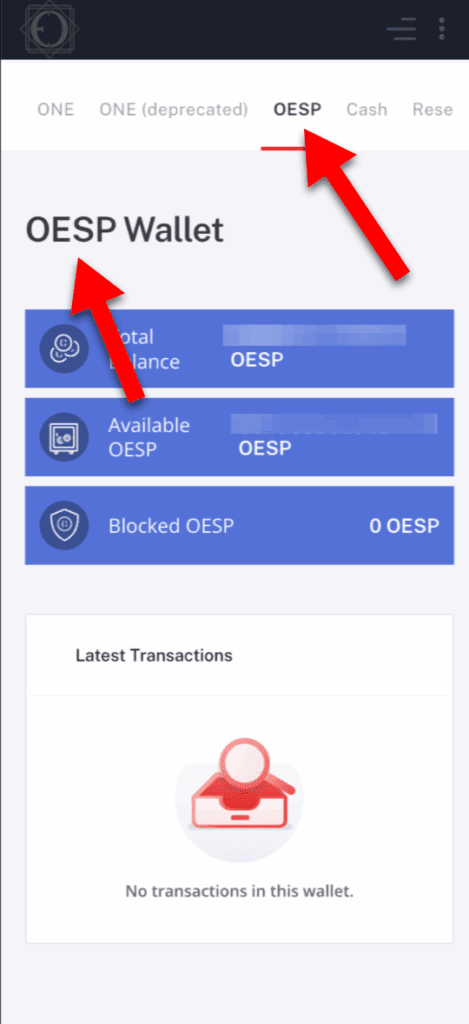
Step 10: Go back to the top menu and click on "OESP" to open your OESP wallet.

A mobile app screen showing the "OESP Wallet" page. Two large red arrows highlight the "OESP" tab and the "Total Balance" section. Below this, a message reads, "No transactions in this wallet." Easily manage your OESP or purchases on DealShaker with ONE.

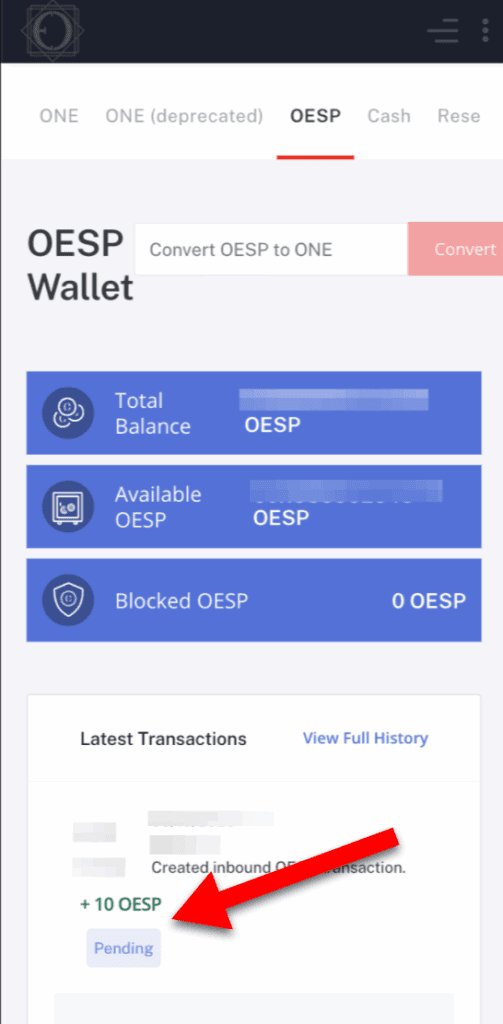
Step 11: You can see that the number of coins you applied for has been added to your OESP wallet history.

It can be seen that the exchange between ONE and OESP is pending immediately after applying for the exchange because it requires blockchain approval. Usually after a few minutes approval You can use it for shopping with DealShaker.

Questions about the above article

Questions related to the above article require a subscription of Bronze Supporter or higher.

Please log in or sign up.
Sign up
Stylized red and gray logo featuring a 3D geometric design with overlapping shapes. Copyright © 2020 – 2026 All Rights Reserved

Providing accurate information to the OneEcosystem community in Japan, sharing knowledge and facilitating member participation and improved experiences.
To the top
magnifier cross

Need help? Please contact our help desk.

0
Please let us know your comments and opinions about this article. x
( )
x