女性が箱や袋を詰めたショッピングカートを押しています。DealShaker のハイライトは日本語と英語のテキストで、有益なビデオを見て ONE を OESP に交換する方法を詳しく説明しています。

A must-see for those who want to shop at DealShaker! How to swap ONE for OESP

* If you are a Bronze member or above, you can read the following articles without advertisements.
女性が箱や袋を詰めたショッピングカートを押しています。DealShaker のハイライトは日本語と英語のテキストで、有益なビデオを見て ONE を OESP に交換する方法を詳しく説明しています。

OneEcosystem - How to exchange ONE for OESP

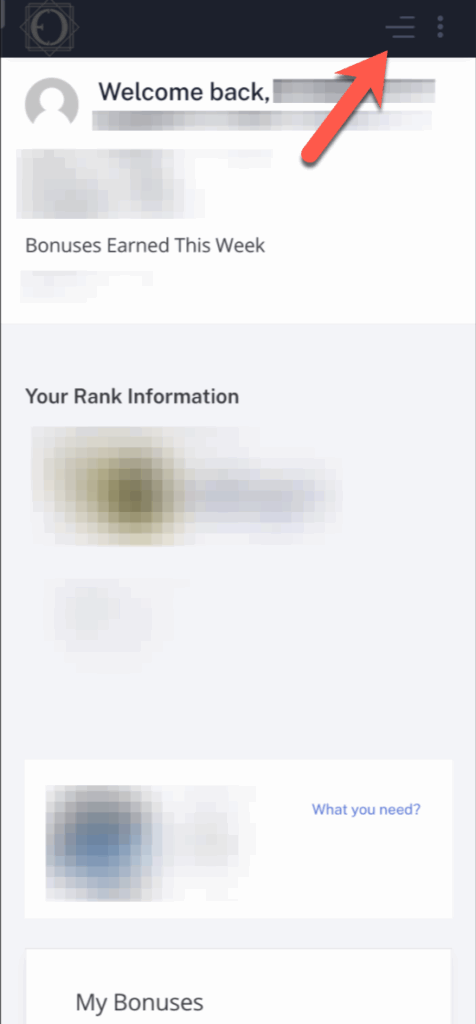
Step 1: Click on the hamburger menu

ウェルカムメッセージ、獲得ボーナス、ランク情報、右上のハンバーガーメニューアイコンを指す赤い矢印を示すDealShakerのモバイルアプリダッシュボードのスクリーンショット。テキストと画像はプライバシー保護のためぼかしてあります。.

Step 2: Verify your account name

First, select the account you want to add OESP to. Follow the steps below to make a purchase at DealShaker using the account that obtained the OESP. Please note that you will not be able to shop if you have a different account.
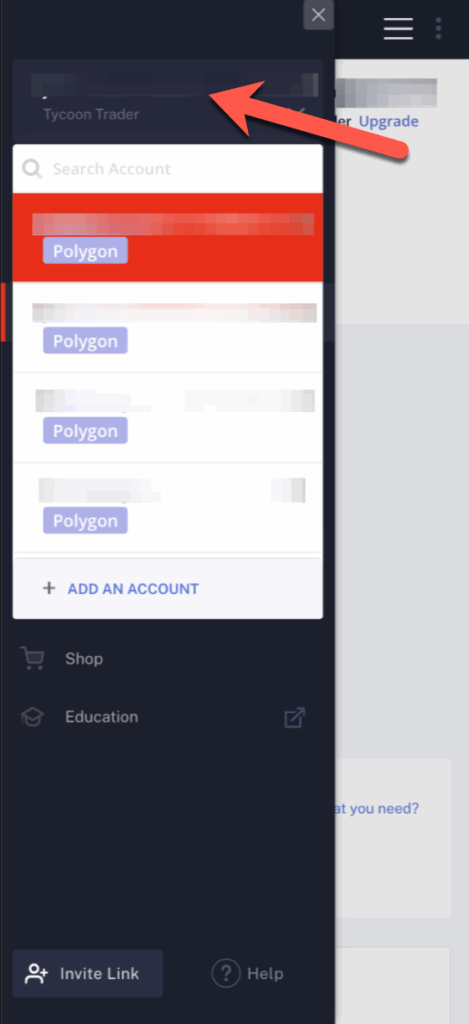
サイドバーのメニューには、上部に「Tycoon Trader」を含む複数の「Polygon」アカウントが表示されます。メニューには、「ショップ」、「教育」、「DealShaker」のオプションがあり、下部には「招待リンク」ボタンがある。一番上のアカウントは矢印でハイライトされています。.

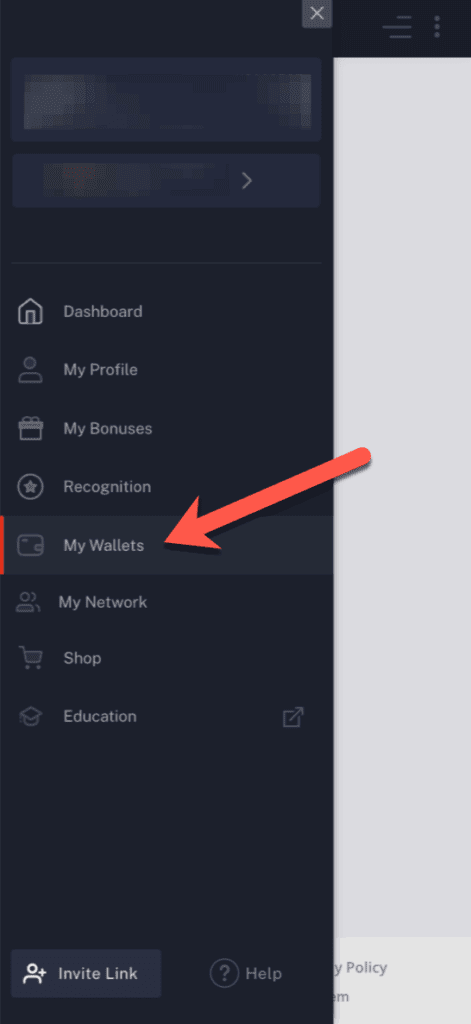
Step 3: Click on "My Wallets".

ダッシュボード、マイ・プロフィール、OESP、ディールシェイカー、マイ・ボーナス、レコグニション、マイ・ネットワーク、ショップ、教育といったセクションがある。.

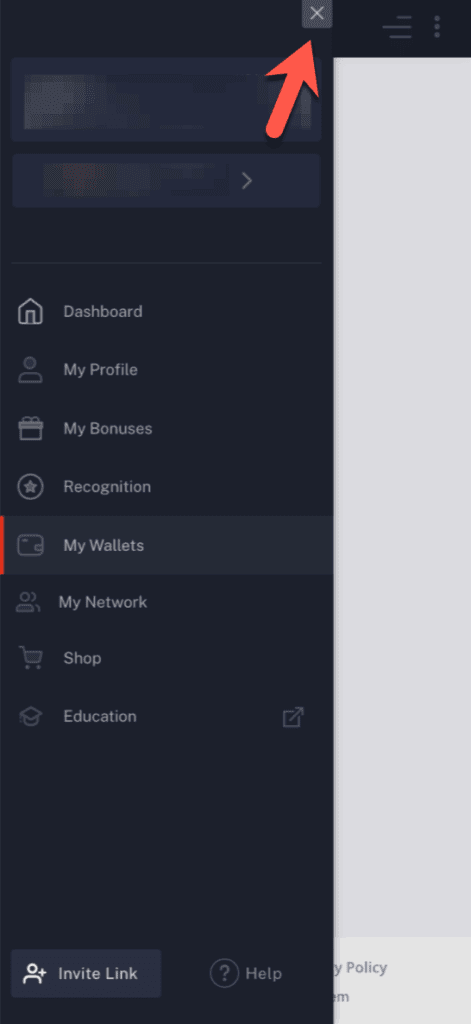
Step 4: Click on the X icon (X) to close the menu.

赤い矢印は、ダッシュボード、マイプロフィール、マイウォレット、招待リンクなどのオプションがある暗いDealShakerサイドバーメニューの右上にある「X」アイコンを指しています。.

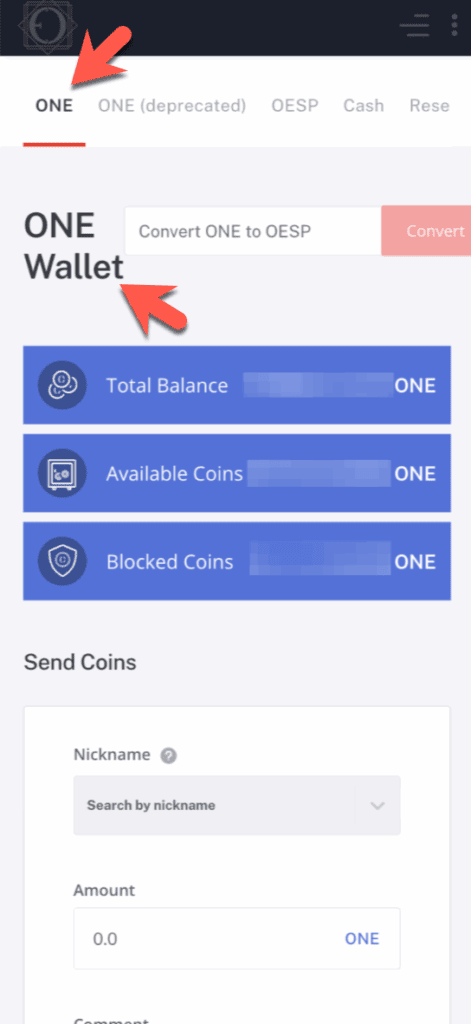
Step 5: Make sure your "ONE" wallet is open.

ONE」タブを選択したデジタルウォレットのインターフェイスのスクリーンショット。その下のオプションには、合計残高、利用可能なコイン、ブロックされたコインが表示され、ニックネームと金額でONEコインを送信するセクションがあります。.

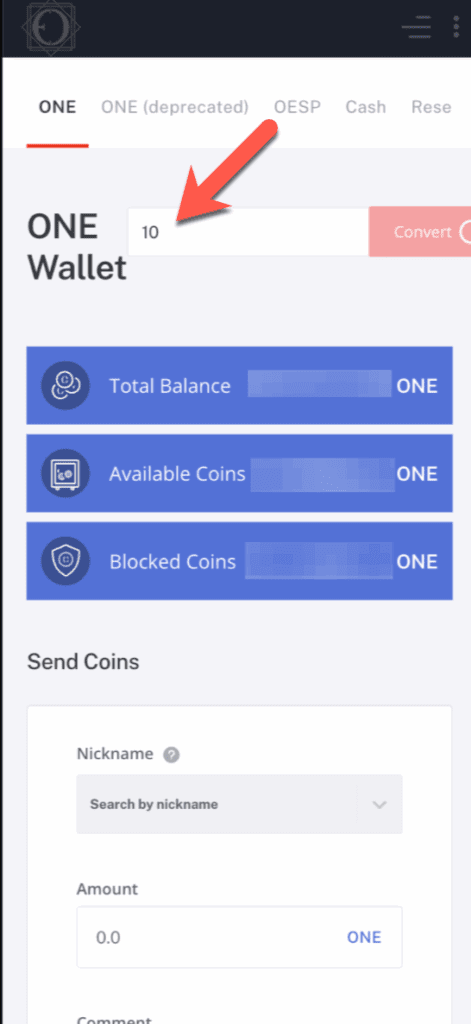
Step 6: Fill out the form at the top with the number of ONEs you want to exchange for OESP.

合計残高、使用可能なコイン、ブロックされているコイン、ONEコインを送信するセクションのフィールドを示す暗号通貨ウォレットのインターフェイスのスクリーンショット。赤い矢印は、上部にある数字の10のボックスを指している。.

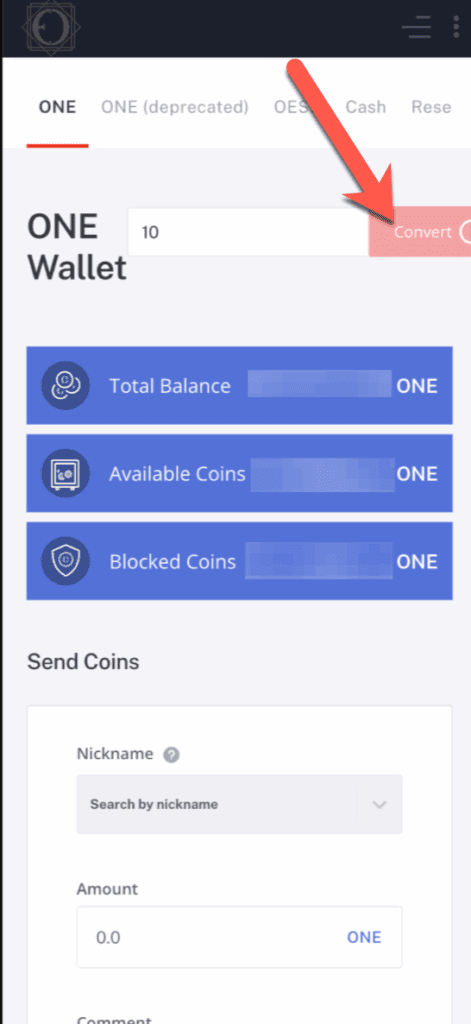
Step 7: Once you have entered the number of ONEs you want to exchange, click on the red Convert button.

ONEのコイン残高とコイン送信フォームを表示した暗号通貨ウォレットのインターフェイスのスクリーンショット。大きな赤い矢印は、金額フィールドの横にある無効化された "Convert "ボタンを指し、DealShakerのようなプラットフォーム向けのONEの機能を強調している。.

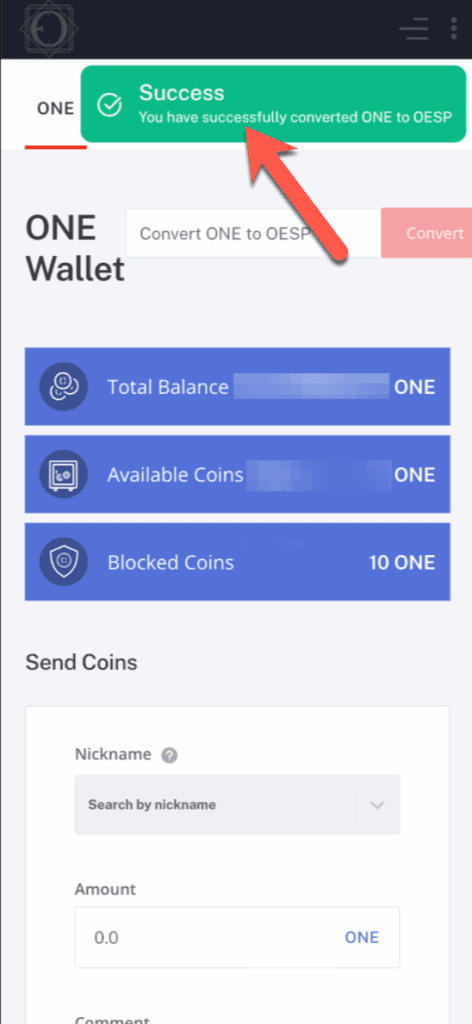
Step 8: If there are no problems, you will see a success notification.

画面に成功のメッセージが表示される:「ONEからOESPへの変換に成功しました。矢印がメッセージを指しています。以下は、合計、利用可能、ブロックされたONEコインのウォレット詳細と、DealShakerでコインを送信するためのフォームです。.

Step 9: At the bottom of the screen, you can see that your application is pending.

You can see that ONE has been deducted for the amount you applied for replacement.
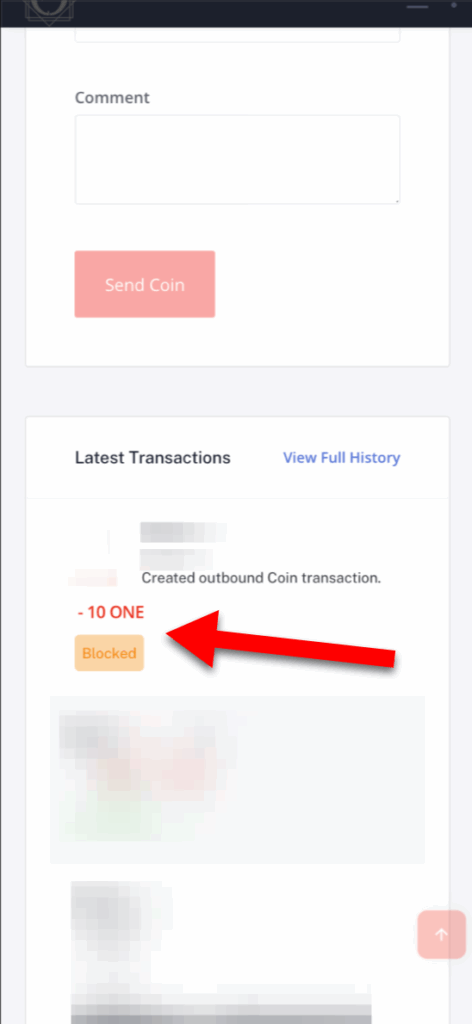
取引ページのスクリーンショットは、DealShakerの最近のアウトバウンドONE取引を示し、"-10 ONE "が赤く表示され、"Blocked "と表示されている。大きな赤い矢印がこのエントリーを強調しています。.

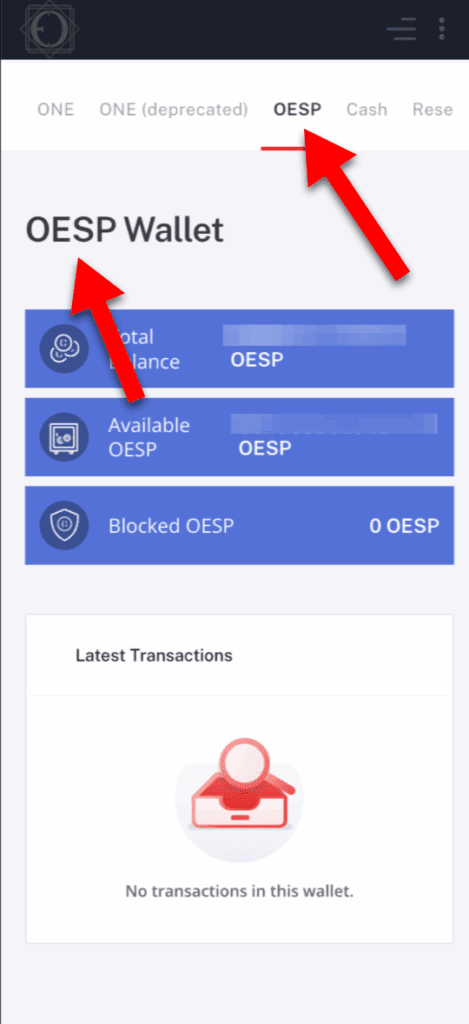
Step 10: Go back to the top menu and click on "OESP" to open your OESP wallet.

OESPウォレット」ページを示すモバイルアプリの画面。2つの大きな赤い矢印が "OESP "タブと "Total Balance "セクションを強調している。その下には、"このウォレットに取引はありません "というメッセージが表示されています。OESPまたはONE for DealShakerでの購入を簡単に管理できます。.

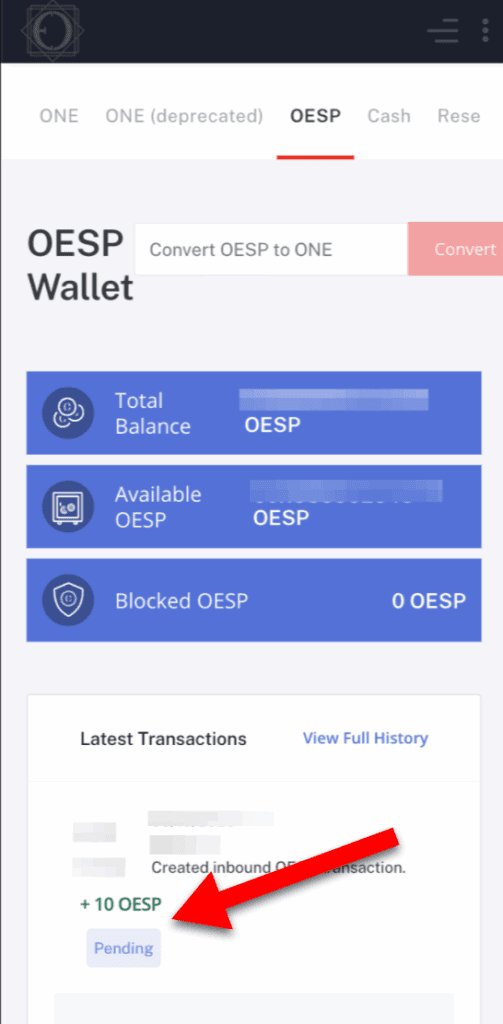
Step 11: You can see that the number of coins you applied for has been added to your OESP wallet history.

It can be seen that the exchange between ONE and OESP is pending immediately after applying for the exchange because it requires blockchain approval. Usually after a few minutes approval You can use it for shopping with DealShaker.

Questions about the above article

Questions related to the above article require a subscription of Bronze Supporter or higher.

Please log in or sign up.
Sign up
重なり合う形状を持つ 3D 幾何学デザインを特徴とする、様式化された赤とグレーのロゴ。 Copyright © 2020 – 2026 All Rights Reserved

Providing accurate information to the OneEcosystem community in Japan, sharing knowledge and facilitating member participation and improved experiences.
To the top
magnifier cross

Need help? Please contact our help desk.

0
Please let us know your comments and opinions about this article. x
( )
x